

Aside from a strong game trailer, one of the most important parts of your store page is your Steam description. It’s often where players spend the most time deciding whether your game looks interesting or not.
If your description is just text, your game can feel flat — even if the gameplay is great. That’s where GIFs come in.
This guide explains why GIFs work so well on Steam and how to make them efficiently without destroying load times.
Why Your Steam Description Needs GIFs
When players visit a store page on Steam, their eyes go straight to visuals.
Even while reading this article, you probably noticed the images before reading. That’s how powerful images are! They are first and lasting impressions.
Images:
- Get noticed before text
- Communicate faster
- Stick in memory longer
GIFs take this one step further by showing motion:
- Combat
- UI interactions
- Enemy behavior
- Environmental effects
This is like a super power because you can easily convey what your game is about even if someone completely skips your trailer.
Great Examples of GIFs on Steam Pages
Some indie games use GIFs exceptionally well to communicate gameplay instantly.
Whistling Waters‘ Steam page shows you gameplay everywhere you look! You don’t have to look at the trailer or the screenshots because the description is filled with GIFs of gameplay. Potential players already know what type of game their looking at.
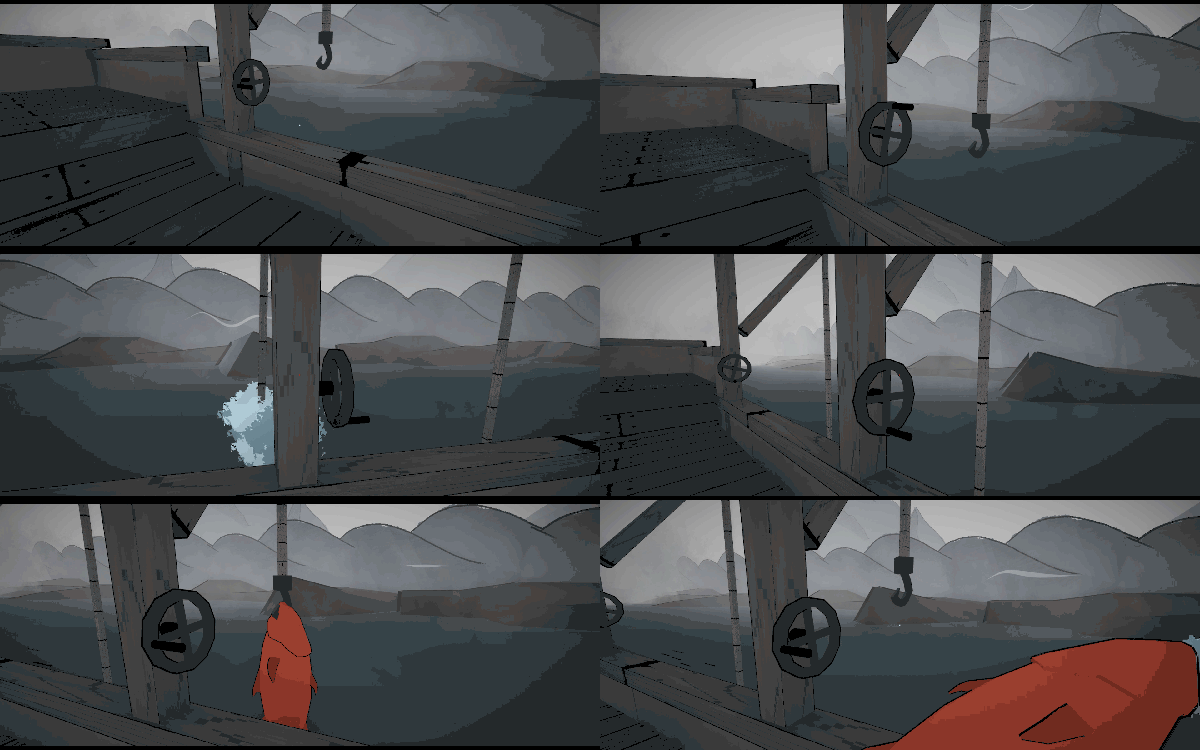
Balatro uses it’s Steam description to show off it’s satisfying UI elements and really gives you a feel for what playing this game is like.

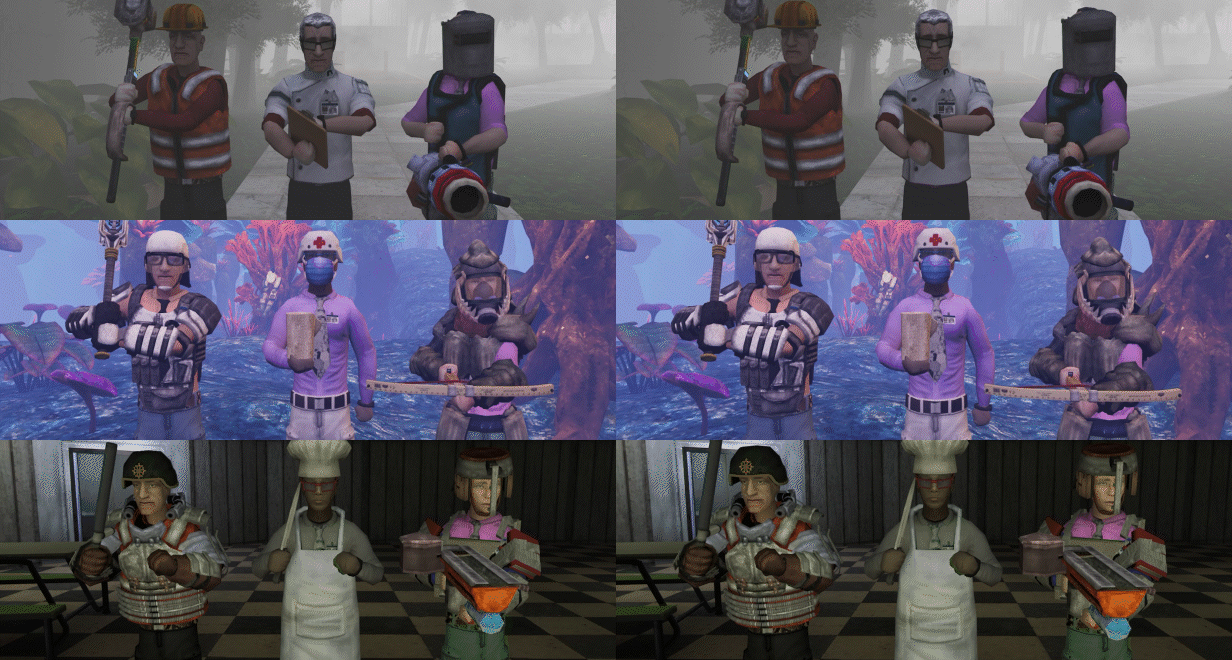
Abiotic Factor uses a GIF to show a bunch of different equipment and character models. Instead of using 3 different images, they condense 9 characters into one badass looking GIF.
How to Make GIFs for Your Steam Description
The easiest way I’ve found to make GIFs for my games is using Gyazo and Photoshop. Gyazo easily captures GIFs, just like any other snipping tool but only records for about 6 seconds at a time. If you want more control over capturing footage, I would use another software like GeForce Experience.
Capturing GIFs:
- Capture a GIF with Gyazo
- Share > Download as GIF
Using Photoshop or other image editing software allows for more control over file size and style of your gifs.
Exporting GIFs from Photoshop:
- Import GIF or MP4 into Photoshop
- File > Export > Save for Web
- Set Image Size, Quality, Color settings
- Save
GIF Size Limits You Need to Know
Itchio has a strict limit of 3mb per GIF. Steam doesn’t seem to have hard limits per image but they warn to not have more than a total of 15mb of gifs on your Steam page as it will affect load times.
- itch.io
- 3MB per GIF (strict)
- Steam
- No hard per-image limit
- Valve recommends keeping total GIF usage under ~15MB
- Large pages increase load times and hurt performance
To prevent reaching these limits, you’ll have to mess with settings and quality in Photoshop until your file size is less than the limited amount.
If a GIF is too large:
- Reduce resolution
- Lower color count
- Shorten duration
Best Practices for Steam GIFs
To get the most out of your GIFs:
- Keep them short (2–6 seconds)
- Loop cleanly
- Show one idea per GIF
- Avoid cluttered UI
- Prioritize gameplay over cinematics
If someone scrolls quickly, they should still understand what they’re seeing.
Final Thoughts
GIFs are one of the most powerful — and underused — tools on a Steam page. They let you show gameplay, mechanics, and feel without demanding extra effort from the viewer.
If your Steam description feels flat, adding even a few well-made GIFs can dramatically improve first impressions.
And if you’d like help creating GIFs, polishing your Steam page, or editing a game trailer, feel free to reach out — I’m happy to help.

If you’re also working on a trailer, check out my guide on what makes a good game trailer and how long a game trailer should be.

 Indie Game Trailers
Leave a comment